![Note] To download files, either do
right click on the link and select
Save link as...orSave target as...to download the file.or click on the link and then press
Ctrl + Sto save the file.
cmosedu.com Tutorials:
Electric VLSI Setup
This is a tutorial on how to setup a VLSI design environment on a your machine.
1. Install Java 1.8
Check if Java is installed on your machine by running the following command on command line:
Type
cmd(for Windows),terminal(for MacOS) in the search bar and press enter to open the command line.Then type the following command and press enter:
java -version
If Java is installed, you will see the version of Java installed on your machine. If not, you will see an error message.
Java 1.8 Installation for Windows
Java 1.8 Windows Installer Download
Java 1.8 Installation for MacOS
Open the terminal and type the following command and press enter:
$ /bin/bash -c "$(curl -fsSL https://raw.githubusercontent.com/Homebrew/install/HEAD/install.sh)"
$ brew tap adoptopenjdk/openjdk
$ brew install openjdk@8

2. Install Electric (VLSI Design Tool)
Electric VLSI Design Tool Download
or you can download it from the official website:
3. Install LTSpice
Follow the instructions on the official website to install LTSpice:
For Windows Better Download Legacy Version:
Windows LTSpiceIV Legacy Download
For MacOS, Linux Based Systems (Better Use This Version):
4. Download tmsc180.txt (180nm) (Technology File)
4.1. Download C5_Models.txt (Technology File)
5. Preferences / Settings
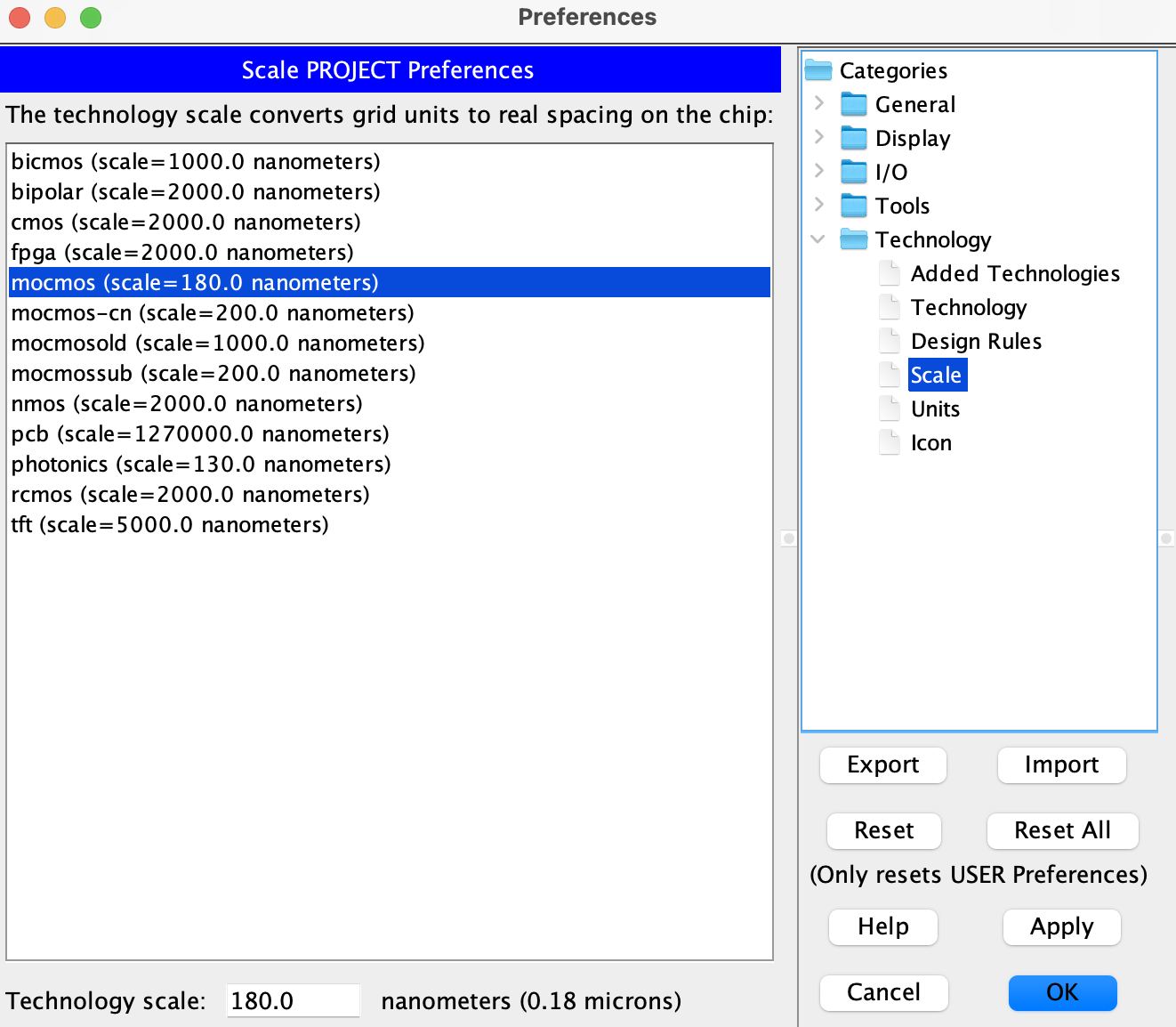
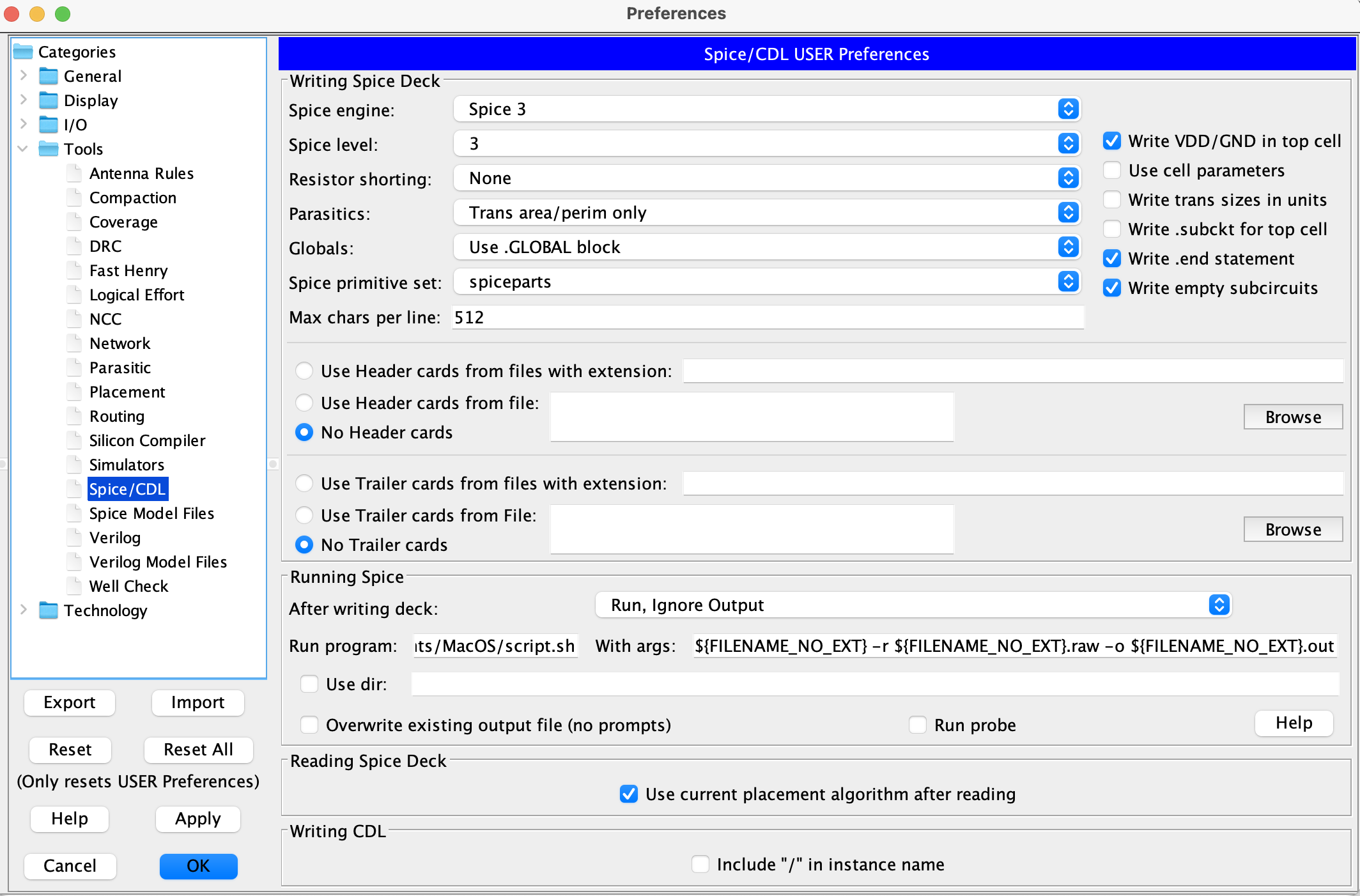
For LTSpice, you need to set the path of the LTSpice executable file. At
Running SpiceSection:After running deck:
Run, Ignore InputRun program: Path of the LTSpice executable file (e.g. C:\Program Files\LTC\LTspice\LTSpice.exe)Run program (MacOS): Path of the LTSpice executable file (e.g. /Applications/LTspice.app/Contents/MacOS/script.sh)
Download script.sh from the following link: script.sh Download (for LTSpice
With Args: Paste following:
For Windows:
-i ${FILENAME} -r ${FILENAME_NO_EXT}.raw -o ${FILENAME_NO_EXT}.outFor MacOS:
${FILENAME_NO_EXT} -r ${FILENAME_NO_EXT}.raw -o ${FILENAME_NO_EXT}.out
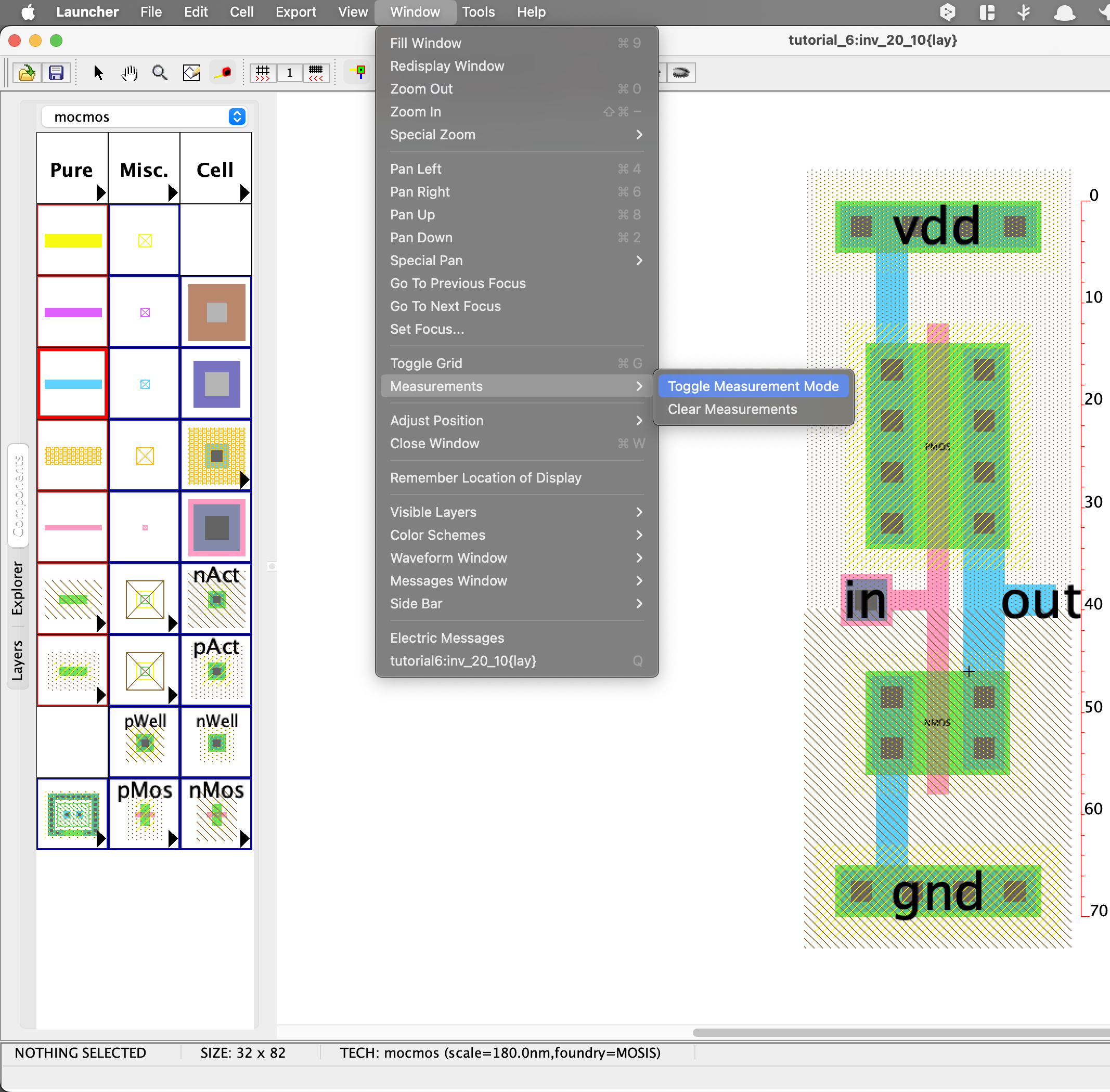
Bonus: How to Toggle Measurement (Display Ruler):